Access & Login
Opening Insights
Go to https://insights.liragen.com in a current web browser (Chrome, Firefox, Safari or Edge). The address opens the Insights interface at https://insights.liragen.com/v2/.
From the Liragen website, liragen.com, click Open Insights in the top navigation bar.
Signing in
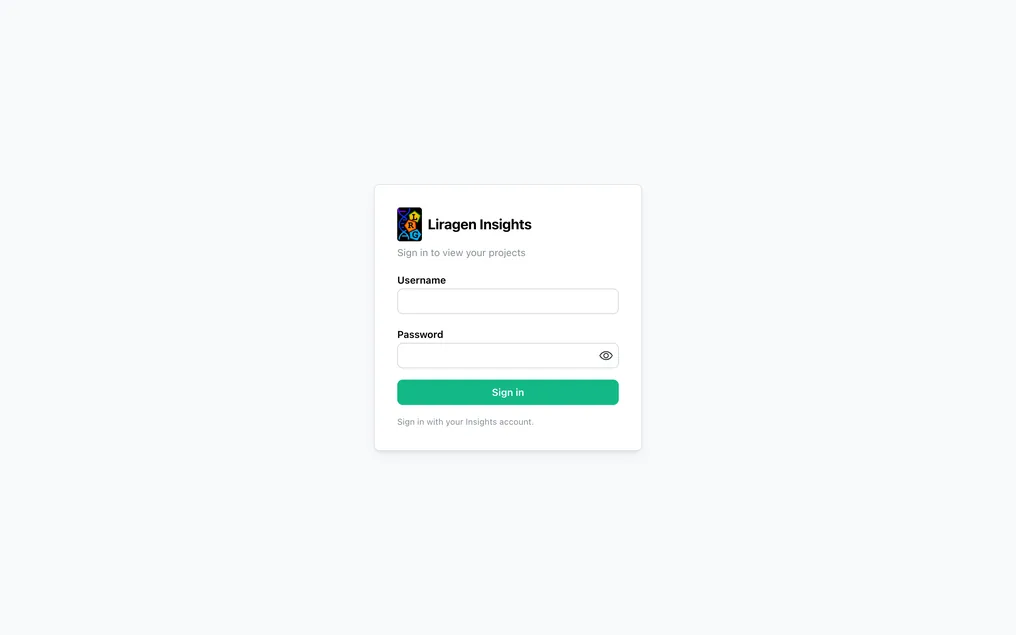
The sign-in card reads Sign in to view your projects and has two fields:
- Username — the username Liragen gave you.
- Password — your password. The eye icon at the right of the field shows or hides what you typed.
Click Sign in, or press Enter in either field. Both fields must be filled in.
If the username or password is wrong, the card shows Invalid username or password. The message is the same whichever of the two is wrong. After five failed attempts within a minute the account is locked briefly and the card says Too many failed attempts. Try again in N seconds. If you still cannot sign in, contact Liragen to have your account checked or reset.
After signing in
You land on the Projects page: one card per project, each showing the project name, its status (for example COMPLETED), a coloured project-kind badge (such as RNA DE, DNA SNP or SINGLE-CELL), the analyses it contains and the organism and assay. A Filter projects box above the cards narrows the list by name, organism or analysis type.
Click a card to open the project. Its Project home page summarises the project and lists every report available for it — see Platform Overview.
The buttons at the top right — New project, AI Research, Colors and Manual — are on every page. Manual opens this user manual in English (User manual (English)) or Korean (사용자메뉴얼 (한국어)).
The user menu and signing out
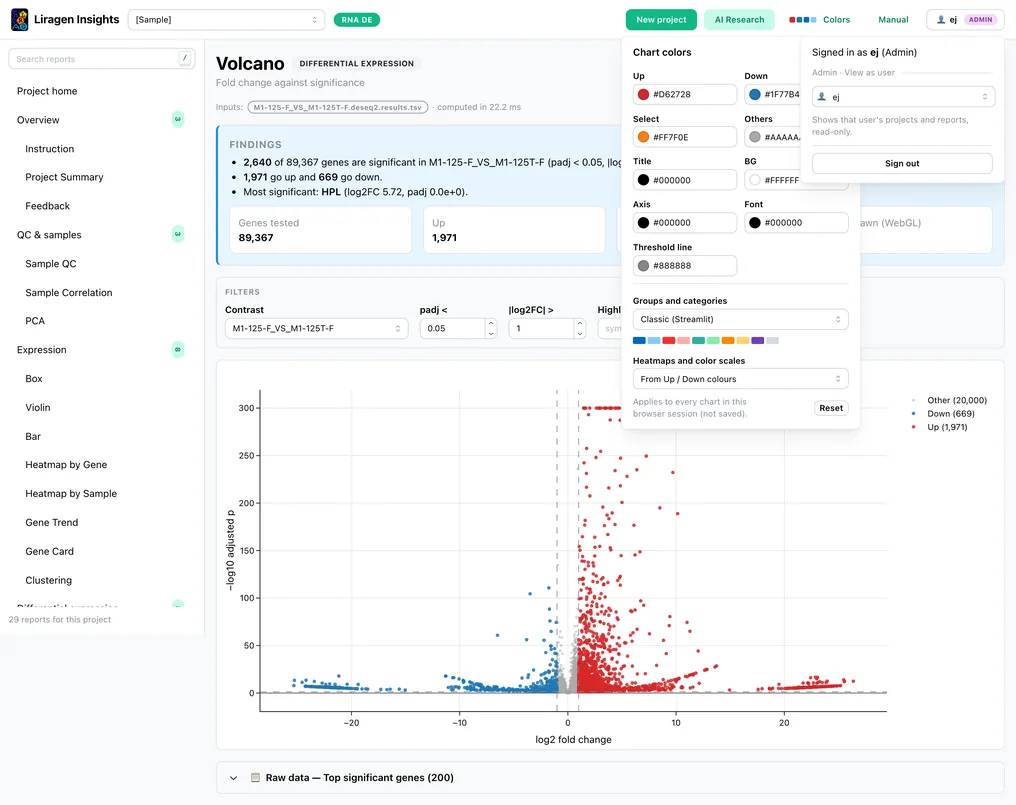
The button at the far right of the top bar shows your username. Click it to open the user menu:
- Signed in as your username (and your role, for example (Admin)).
- Sign out — ends your session and returns you to the sign-in screen.
Administrators also see Admin · View as user: picking a user there shows that user's projects and reports, read-only. While it is on, the account button reads Viewing as name, an orange banner explains whose projects you are seeing, and New project and AI Research are hidden. Back to my projects (in the menu) or Back to your name (in the banner) returns to your own projects.